Managing Phonox with the Phonox CLI
No juggling Docker commands. No hunting through .env files. phonox-cli is the single entry point for everything you need to run and manage your Phonox vinyl intelligence system.
Note:
start-cli.shstill exists and works — it simply delegates tophonox-cliunder the hood.
What is phonox-cli?
phonox-cli lives in the root of the Phonox repository and launches the interactive Phonox CLI console — a Python-powered management tool that wraps all Docker, configuration, backup, collection management, and documentation tasks into one clean, curses-based interface.
# Make both scripts executable once
chmod +x phonox-cli start-cli.sh

# Launch the console
./phonox-cli
That’s all it takes.
The Interactive Menu
When you run ./phonox-cli without arguments, you land in a full-screen curses interface. Navigate with ↑ / ↓ arrow keys, select with Enter, and cancel or go back with q or Esc — no numbered input required.
The top of the screen always shows the Phonox ASCII logo and a live status panel — each service (Frontend, Backend, DB) has its own colour-coded ✔ / ✘ icon, plus Network status and the latest backup timestamp — so you always know where things stand before you act.
Below that, the menu:
 ██████╗ ██╗  ██╗ ██████╗ ███╗   ██╗ ██████╗ ██╗  ██╗
 ██╔══██╗██║  ██║██╔═══██╗████╗  ██║██╔═══██╗╚██╗██╔╝
 ██████╔╝███████║██║   ██║██╔██╗ ██║██║   ██║ ╚███╔╝
 ██╔═══╝ ██╔══██║██║   ██║██║╚██╗██║██║   ██║ ██╔██╗
 ██║     ██║  ██║╚██████╔╝██║ ╚████║╚██████╔╝██╔╝ ██╗
 ╚═╝     ╚═╝  ╚═╝ ╚═════╝ ╚═╝  ╚═══╝ ╚═════╝ ╚═╝  ╚═╝
 Vinyl Intelligence Console

──────  Status  ──────
  Frontend ✔   Backend ✔   DB ✔
  Network ✔   Backup 2026-02-22  22:26

┌──────────────────────────────────┐
│ Phonox — Main Menu               │
├──────────────────────────────────┤
│   Install (build images)         │
│   Install + start                │
│ ▶ Configure API keys             │
│   Start containers               │
│   Stop containers                │
│   Restart containers             │
│   Backup                         │
│   Restore                        │
│   Manage collections             │
│   View documentation (MkDocs)    │
│   Exit                           │
└──────────────────────────────────┘
  ↑/↓ navigate  Enter select  q/Esc cancel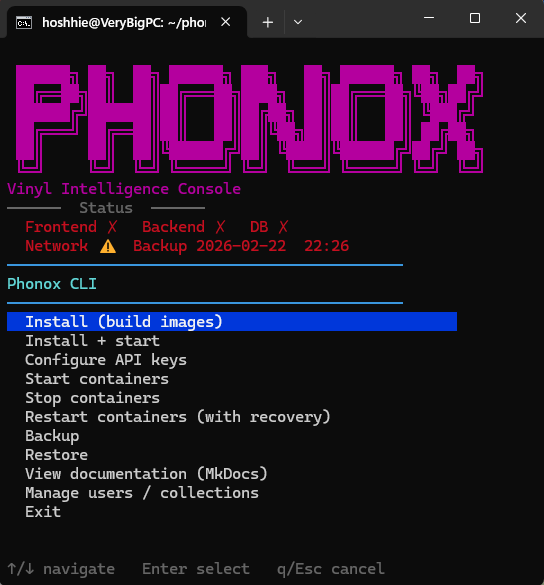
Each action runs, reports its result in colour, and then returns you to the menu — no need to relaunch the script between tasks.
Menu Options Explained
1 — Install (build images)
Prepares the environment: creates the required directories (backups/, data/uploads/, data/postgres/data/) and builds the Docker images. Containers are not started yet. Use this when you want to pre-build images on a fresh clone without going live immediately.
2 — Install + start
Same as option 1, but also brings up all containers in detached mode and waits for the PostgreSQL database to pass its health check before returning. This is the recommended first-run option.
3 — Configure API keys
Opens an interactive curses menu listing all six configurable keys with their current values (secrets are masked). Select a key, type the new value — leave blank to keep the existing one — then choose Save & apply to write everything to .env and auto-restart the running containers.
  Anthropic API key          ****…TgAA
  Tavily API key             ****…UxT4
  Vision model               claude-sonnet-4-6
  Chat model                 claude-haiku-4-5-20251001
  Aggregation model          claude-sonnet-4-6
  Enhancement model          claude-opus-4-5
  ──────────────────────────────────────
  Save & apply
Cancel| Variable | Purpose | Secret |
|---|---|---|
ANTHROPIC_API_KEY | Claude vision & chat | Yes |
TAVILY_API_KEY | Web-search fallback | Yes |
ANTHROPIC_VISION_MODEL | Model for image analysis | No |
ANTHROPIC_CHAT_MODEL | Model for conversational chat | No |
ANTHROPIC_AGGREGATION_MODEL | Model for merging multi-image results | No |
ANTHROPIC_ENHANCEMENT_MODEL | Model for metadata enrichment | No |
You can also set keys non-interactively (see Direct Commands below).
4 — Start containers
Brings up the Docker Compose stack (docker compose up -d) and runs a health check on the database, with automatic retry if PostgreSQL is still initialising. Safe to run repeatedly.
5 — Stop containers
Gracefully shuts down all services (docker compose down). Your database volume is preserved — nothing is lost.
6 — Restart (with recovery)
Runs a full down → up cycle. If the database reports unhealthy after the restart, the CLI automatically issues a targeted docker compose restart db and waits for recovery before reporting back. Useful after host reboots or after editing docker-compose.yml.
7 — Backup
Triggers scripts/backup.sh, which dumps the PostgreSQL database to backups/phonox_db_<timestamp>.sql and archives the uploads directory to backups/phonox_uploads_<timestamp>.tar.gz. Run this before any upgrade.
8 — Restore
Opens an interactive curses menu listing all available backups sorted newest-first. Select a backup, type yes to confirm before overwriting current data, and the CLI replays the database dump and unpacks the uploads archive into their live locations.
  2026-02-22  22:26:04
  2026-02-16  23:23:22
  2026-02-16  22:49:52
  2026-02-11  21:28:24
  ─────────────────────
  Cancel
⚠️ Warning: Restoring overwrites current data. Always create a backup first!
9 — Manage collections
Opens an interactive curses menu listing all vinyl record collections (derived from the user_tag field) with their record counts. Select a collection to rename it — all records in that collection are updated instantly via a direct database query.
  Jan (142 records)
  ─────────────────
  Back
Note: A collection only exists while it has records. Empty collections cannot appear in the list and cannot be created or deleted independently.
10 — View documentation (MkDocs)
Starts a local MkDocs server at http://localhost:8001. The CLI will create a .venv and install dependencies automatically if needed. Press Ctrl+C inside the console to stop the doc server and return to the menu.
Direct Commands
All menu options are also available as one-liners — useful for scripts, CI pipelines, or when you just want to skip the interactive prompt:
# First-run: build + start everything
./phonox-cli install --up

# Build only, don't start
./phonox-cli install

# Build without rebuilding images (fast re-init)
./phonox-cli install --skip-build --up

# Set API keys from the command line
./phonox-cli configure \
  --anthropic  "sk-ant-..." \
  --tavily     "tvly-..." \
  --vision-model "claude-sonnet-4-6" \
  --chat-model   "claude-haiku-4-5-20251001"

# Day-to-day lifecycle
./phonox-cli start
./phonox-cli stop
./phonox-cli restart

# Backup & restore
./phonox-cli backup
./phonox-cli restore 20260222_143012

# Manage collections
./phonox-cli manage-users

# Local docs server
./phonox-cli docs
First-Run Checklist
-
Clone the repo
git clone https://github.com/Hoshi42/phonox.git cd phonox chmod +x phonox-cli start-cli.sh -
Configure your API keys (select Configure API keys from the menu, or
./phonox-cli configure) -
Install and start (select Install + start from the menu, or
./phonox-cli install --up) -
Open the app → http://localhost:5173
-
Optional: open local docs → select View documentation (MkDocs) → http://localhost:8001
That’s the entire setup — no Docker knowledge required beyond having it installed.
Where are the logs?
The CLI uses Docker Compose under the hood, so standard Compose commands still work alongside it:
# Follow all logs
docker compose logs -f

# Follow only the backend
docker compose logs -f backend

# Follow only the database
docker compose logs -f db
Whether you’re spinning up Phonox for the first time or performing a routine backup before an upgrade, phonox-cli keeps every management task in one place. No cheat-sheets needed.