Move Records Between Users in Phonox
Phonox 1.9.7 adds a dedicated Move Record button to every entry in the List view of your Vinyl Register. In one action you can transfer a record to any existing user—or create an entirely new user collection on the spot.
Why This Exists
Phonox uses named user profiles to keep separate collections in the same installation. The most common reason to move a record is that a record was catalogued under the wrong profile, or a shared household wants to redistribute records between personal collections.
Previously this required editing the database directly. Now it’s a single button click.
The 👤 Button in List View
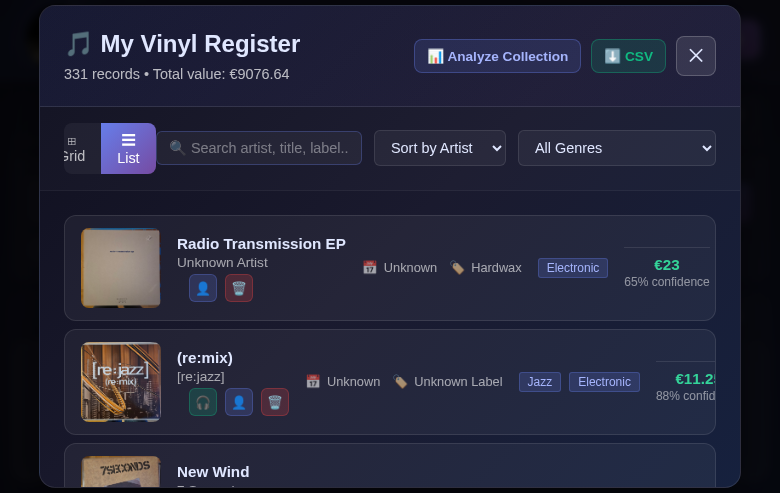
Switch your Vinyl Register to ☰ List mode. Every record row now shows up to three action buttons aligned to the right:
- 🎧 — Open the Spotify album page (if a link was found)
- 👤 — Move this record to another user
- 🗑️ — Remove from register
Moving a Record to an Existing User
Click 👤 on any record. A modal dialog opens showing:
- Which record is being moved — artist and title displayed in bold so there’s no ambiguity
- A user dropdown — lists all other existing profiles in this Phonox installation
- ✓ Move Record — confirms and transfers immediately
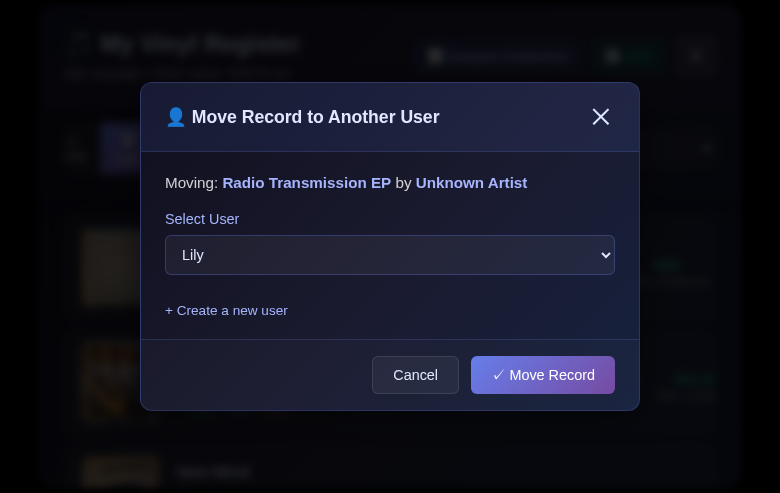
The record disappears from the current user’s collection instantly once the move completes. If the current user had no remaining records after the move, the register closes and returns to the user selection screen.
Creating a New User During the Move
Don’t have a second collection yet? The dialog includes a + Create a new user link. Clicking it replaces the dropdown with a text field where you type the new profile name.
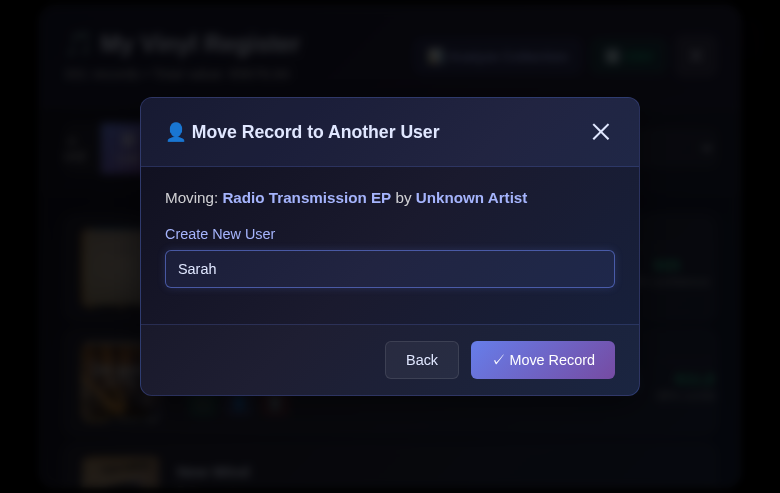
Phonox creates the new profile and moves the record to it in a single request. You can then switch to the new profile from the header to verify the record landed correctly.
Switching Between Profiles After Moving
After transferring a record, you can use the profile switcher in the header to view the destination collection and confirm the move:
- Click the 👤 [username] indicator in the top bar
- Select the target user from the Your Profiles list
- Open 📚 My Register — the moved record appears in the new collection
Under the Hood
The move is handled by a new backend endpoint: POST /api/register/move. It takes:
| Field | Description |
|---|---|
record_id | UUID of the record to move |
from_user | Current user tag (used as a safety check) |
to_user | Target user tag (created if it doesn’t exist) |
The call updates the user_tag column on the record and returns the full updated record object. No data is duplicated—only the ownership field changes.
Related
- Getting Started with Phonox — Setting up multi-user collections from scratch
- Managing Phonox with the CLI — Rename collections and manage users from the command line